Maintain Weekly Deals
Purpose
Create and review time-sensitive offers without presenting stale, incomplete, or unverified claims as current. Weekly Deals are normal WordPress posts in the Deals & Discounts category plus the Weekly Deal Verification fields. The same guarded current-deal query supplies the Home page and the Weekly Deals page.
Required role
Author or higher for assigned deal posts. Editor or Administrator is required to edit another author's post or approve some publication changes.
Prerequisites
-
Use Gutenberg in Chrome for this post workflow after signing in to website. Keep the existing post editor and shared Divi presentation.
-
Have an authoritative public source URL and a working CTA destination URL.
- Confirm the offer's dates, price basis, restrictions, and eligibility from that source.
- Have approved post copy, excerpt, featured image, and image metadata.
- Know whether the offer is current, upcoming, expired, or waiting for review.
- Do not use a social post, search result, or copied article as the only source when an official offer page exists.
Steps
- Open Posts > Add New Post, enter the title, body, featured image, excerpt, and image metadata using Create or edit a blog post. Keep the normal WordPress post editor; do not build a one-off Divi layout.

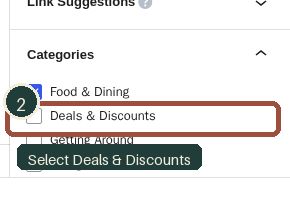
- In Categories, select Deals & Discounts. Clear Uncategorized and unrelated editorial pillars unless an approved content plan requires them.
- Expand Meta Boxes, find Weekly Deal Verification, and leave the item in Needs review while facts are incomplete. The effective-state badge is the system result; choosing a label alone cannot make an incomplete offer current.

- Enter the authoritative Source URL and the exact CTA destination URL. The source supports the claim; the CTA is the page the public button opens. Open both in separate tabs and reject redirects, errors, or destinations that no longer match the offer.

- Record the Checked date, optional Start date, and the known End date or Recheck date. A current offer must have an end or recheck date. Use the dates stated by the source; do not extend an offer by guesswork.

- Enter a specific Price basis, a short honest CTA label, all material Restrictions, and who is covered under Eligibility. Do not hide taxes, membership requirements, location limits, minimum spend, blackout dates, or other conditions that could change the reader's decision.

- Reopen the CTA destination, confirm that it still matches the offer, then select I opened the CTA destination and verified it matches this offer. If the URL or offer later changes, clear the checkbox, recheck the destination, and verify it again before saving.

- Use Save draft while the offer is incomplete or awaiting approval. Use Publish only after the normal blog-post checks pass and the intended effective state is correct. Reopen the saved post and confirm the badge; saving records the CTA verification time.

- Open the public Weekly Deals page and the Home page. A qualifying current post should appear as a deal card; when none qualify, confirm the deliberate No current deals are ready for publication message and its working Deals and Newsletter links.

How the effective state is decided
| Effective state | What it means | Public current list |
|---|---|---|
| Current | Manual state is Current, required metadata and URLs are valid, an end or recheck date exists, the recheck date has not passed, the start date is not in the future, and the CTA is verified. | Included only when the post is also published and in Deals & Discounts. |
| Upcoming | Manual state is Upcoming or the start date is in the future. | Excluded until it resolves as Current. |
| Expired | Manual state is Expired or the end date is before today. | Excluded. |
| Needs review | Manually selected, required metadata is missing or invalid, the recheck date passed, or the CTA is not verified. | Excluded. |
| Empty | No published Deals & Discounts post currently qualifies as Current. | Shows the honest empty-state message and valid next actions. |
Required metadata includes the source URL, CTA URL, checked date, price basis, restrictions, eligibility, and either an end date or recheck date. Public current cards are ordered by the nearest end or recheck date.
Expected result
Only approved, published, category-correct offers with complete fresh metadata and a verified CTA appear in the public current list. Expired, upcoming, incomplete, stale, unverified, draft, and unrelated posts remain excluded. When zero offers qualify, readers see an explicit empty state rather than sample or outdated deals.
Common mistakes
- Selecting Current but leaving a required field empty.
- Using the article URL as the CTA when the offer has a separate official action page.
- Entering vague price text such as “cheap” instead of the factual price basis.
- Omitting eligibility or restrictions because they make the offer less attractive.
- Leaving a passed end or recheck date unchanged.
- Assuming a checked CTA remains valid after its URL or offer details change.
- Publishing a sample offer merely to remove the public empty state.
Recovery or escalation
- If facts cannot be verified, select Needs review or keep the post as a draft. Do not publish a best guess.
- If an offer has ended, select Expired and save it. Do not delete editorial history merely to remove it from the current list.
- If a post was published incorrectly, change it to Draft or Pending as approved, record the issue and time, and ask a maintainer to check revisions if content must be restored.
- If a complete published deal still does not appear, check its category, effective-state badge, dates, CTA checkbox, and public URL. If all are correct, escalate the post URL and screenshots; do not add a static replacement card.